 Robine Studio
Getting started
Choose your audio, find your way around the menu, and play your first notes.
Choose your audio
When Robine Studio starts, it asks which input and output to use. Nothing plays until you confirm, so you can plug your interface in first.
- An audio interface is best: plug the guitar into it and choose it as the input.
- A headset or the built-in microphone work too, for the voice tools and for trying things out.
- On an iPhone or iPad, the app picks the best input it finds and switches to an interface as soon as you plug one in. What you choose yourself is kept while it is there.
You can change the audio at any time: tap the line that names the input, above the rig.
Use headphones when you sing or play along with the app, so the sound from the speakers does not reach the microphone.
Find your way around
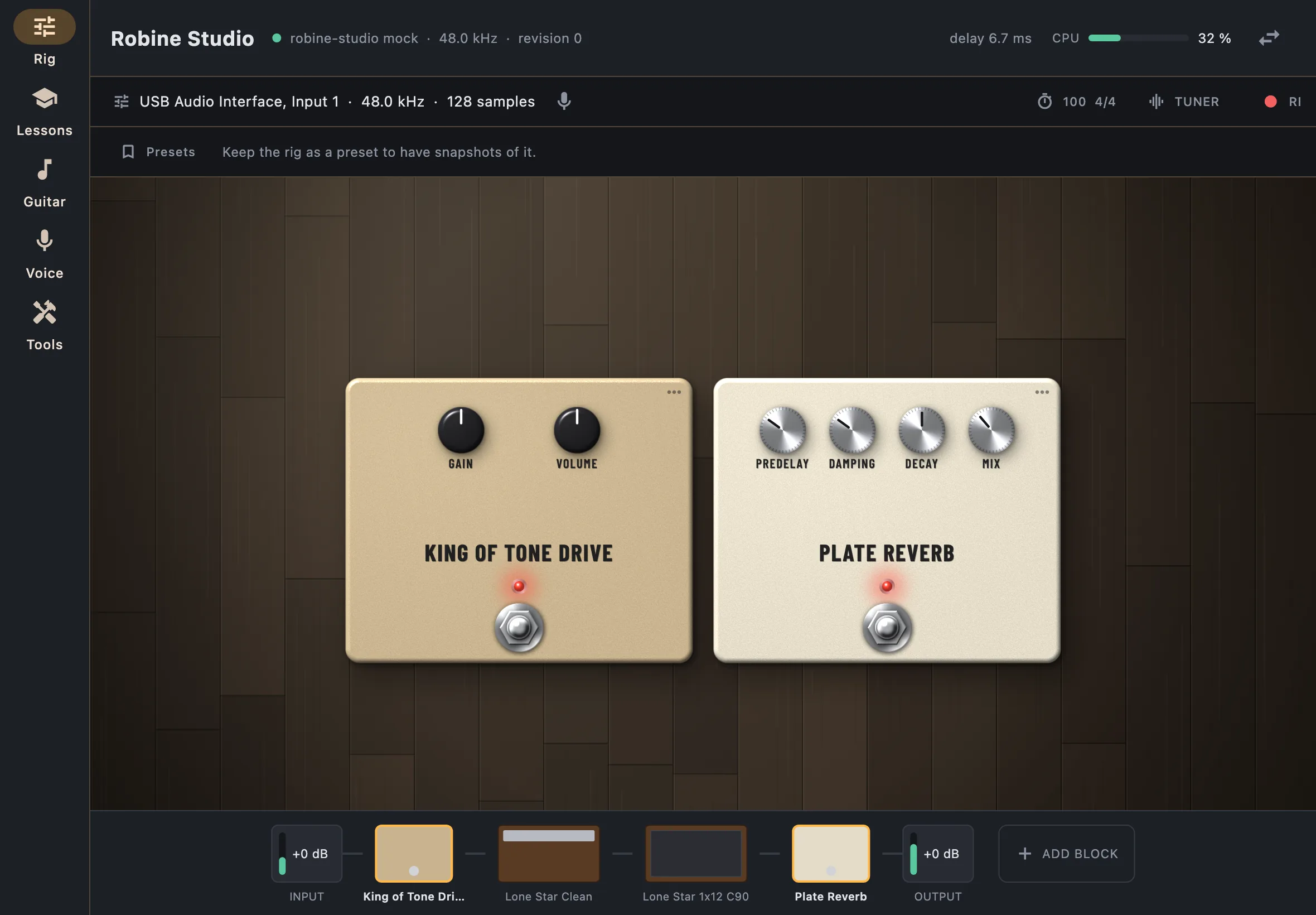
The menu on the left (along the bottom on a phone held upright) has five sections:
| Section | What it is for |
|---|---|
| Rig | Your pedals, amplifier and cabinet, the tuner, the metronome, recording. |
| Lessons | Theory lessons and timed workouts, with tablature and the rig they need. |
| Guitar | A backing guitar that plays the chords you type. |
| Voice | Hear your pitch, record a take and have it analysed, train your ear. |
| Tools | The fretboard, the circle of fifths, the tuner and the metronome. |
The sound keeps running when you change section: you can open a lesson or the tuner without losing your rig.
Your rig is kept
When you close the app, your rig is kept as it was, and comes back at the next start. To keep several rigs and switch between them, save them as presets.
Language and appearance
The app follows your device’s language, English or French. Light and dark appearance are chosen in Tools, with the button at the top right.